To resolve this issue, please follow the steps below:
1. Click on the “People” section of your portal on the left-hand side.
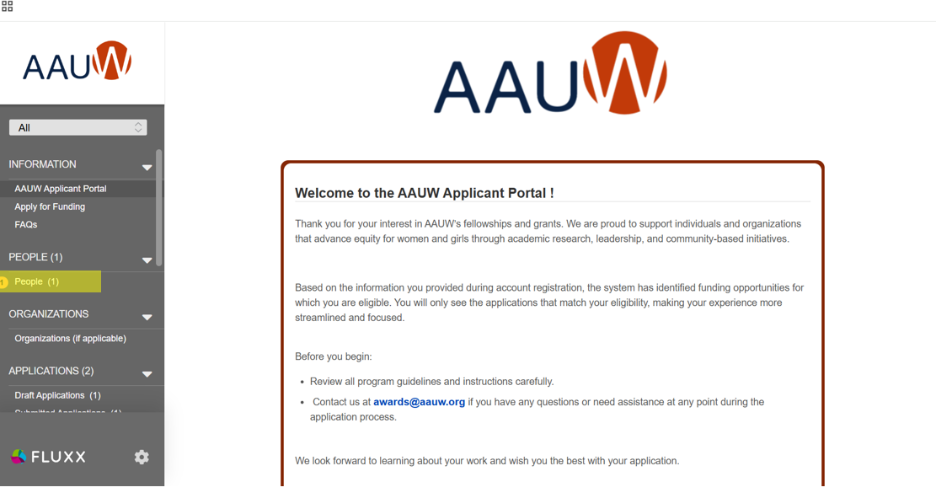
2. Go to “Additional Information” and click “Edit” in the top right corner of your screen.
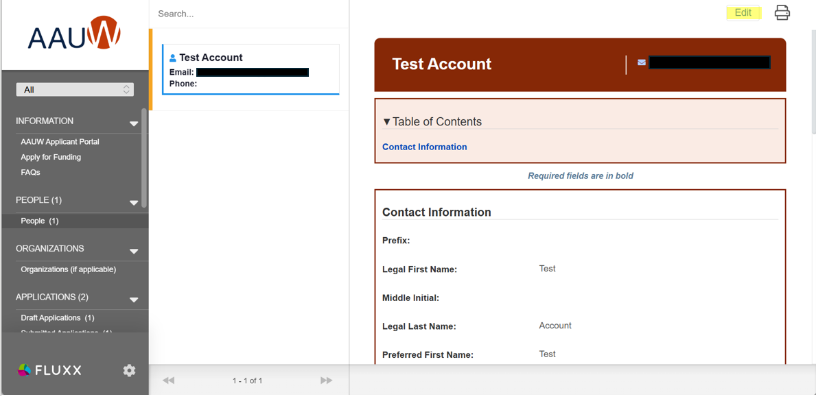
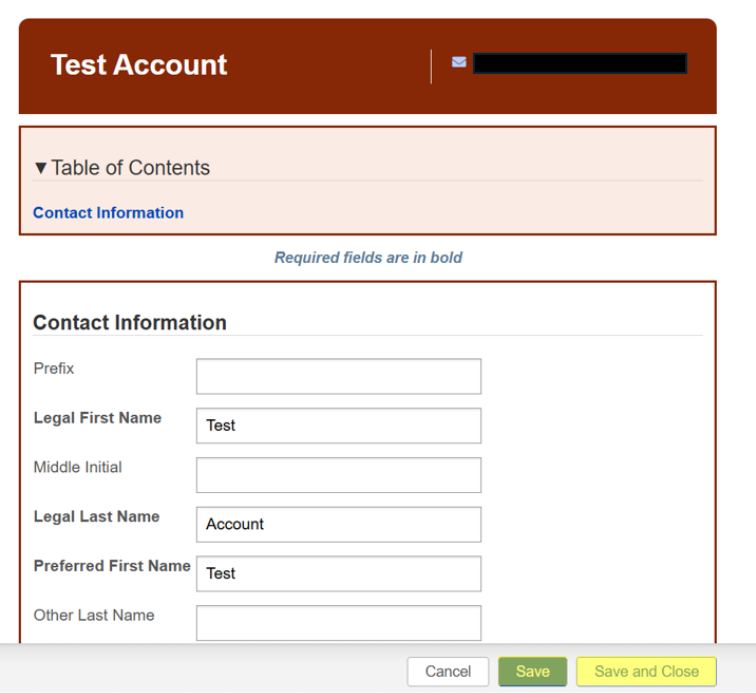
3. Respond to the questions in the “Additional Information” section according to your circumstances. Make sure you have selected “No” for the question asking about the Legal Case Support Grant.
4. Click “Save” or “Save and Close” in the bottom right corner.
5. Under the “Apply for Funding” section of your portal, you should now be able to see applications for the programs you may be eligible for.
It may take your application portal a few moments to register your new responses. If you have saved your responses and your “Apply for Funding” page has not updated, try logging out of your portal account and logging back in.
Was this article helpful?
That’s Great!
Thank you for your feedback
Sorry! We couldn't be helpful
Thank you for your feedback
Feedback sent
We appreciate your effort and will try to fix the article